


Post Detail
BackAxon ERP Official
1 hr ago
From Finished Product to Raw Materials: How to Structure a Bill of Materials in ERP
A bill of materials (BOM) defines the component materials and quantities associated with a finished product. In an ERP system, structuring a BOM involves identifying the correct item, defining its components, assigning appropriate units of measurement, and recording the quantities required by the product specification. The accuracy of this information determines how reliably the BOM represents the intended product structure.
For manufacturers evaluating bill of materials software, the question is not simply whether an ERP system includes a BOM form. They also need to understand how product details and component requirements are recorded, which configuration options are available, and whether the wider system supports their manufacturing requirements.
How a Bill of Materials Connects a Finished Product to Its Materials
A finished product may require several raw materials, purchased components, or other items. A bill of materials brings these requirements together under the relevant product instead of leaving them scattered across spreadsheets and separate material lists.
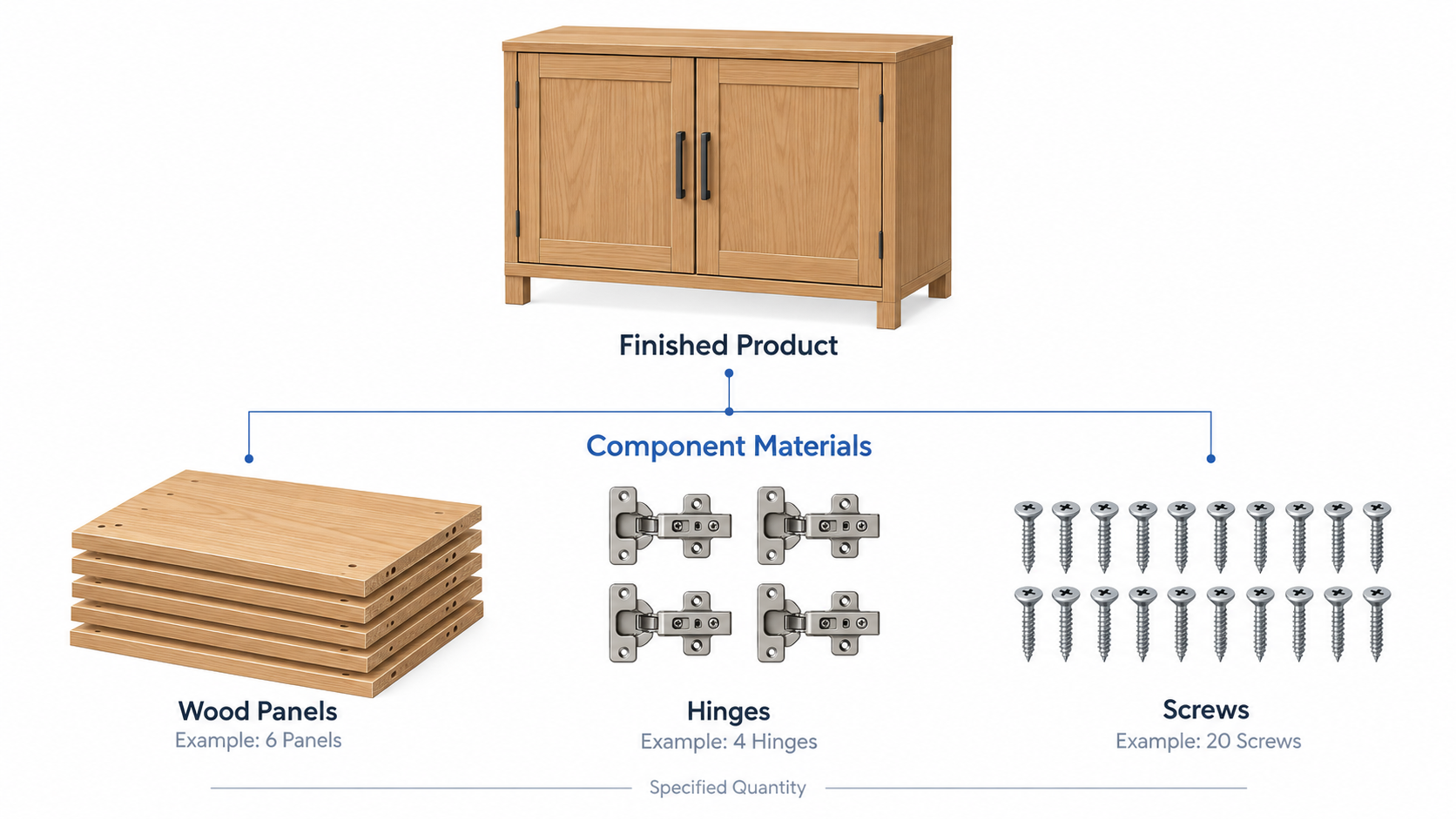
For example, a furniture manufacturer producing a cabinet may use wood panels, hinges, and screws. Its BOM should identify the relevant components and specify the quantity and unit required for each one. A textile manufacturer would define materials according to the specifications of the product being made.
The structure depends on the product itself. Two finished products that look similar may require different materials, quantities, or specifications. Their BOMs should reflect those differences rather than relying on assumptions based on product names or appearance.
A bill of materials management approach helps manufacturers understand how product components and quantities can be organized into a structured record. However, a BOM is only as reliable as the item information and quantities entered into it. The specific functions available for managing, revising, or using that information depend on the software.
What Information Should You Define in an ERP BOM?
The available fields depend on the ERP system. When reviewing a BOM configuration, manufacturers should understand which fields identify the selected product and which record its component requirements.
Finished item and product details
The selected item establishes which product the BOM configuration relates to. Its item code and details help distinguish it from other items in the system.
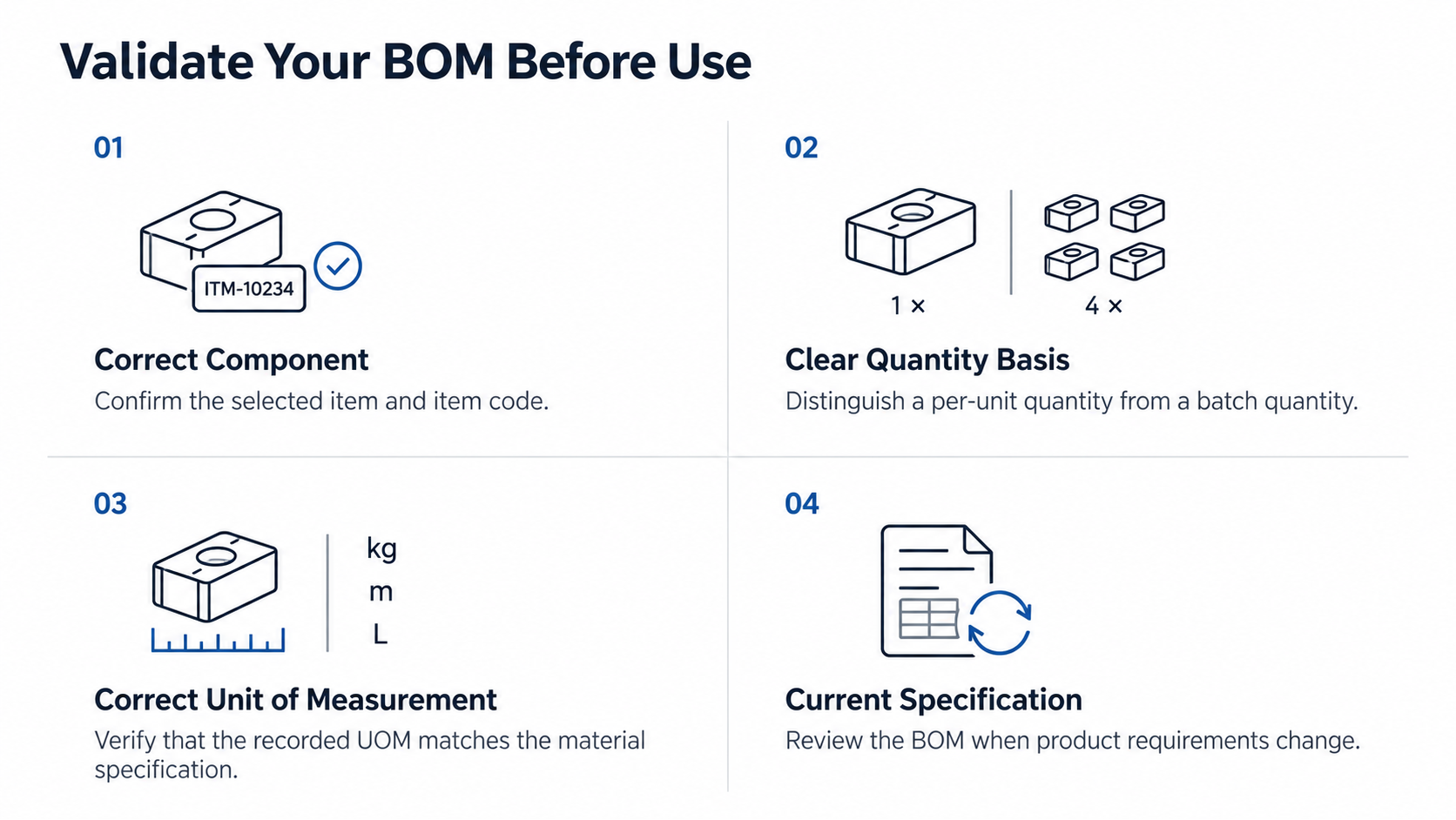
Before configuring a BOM, verify that the correct item has been selected and that its identifying information is accurate. This is particularly important when a manufacturer maintains similar products with different specifications.
A consistent item management structure in ERP helps businesses maintain clear item records. Correct product identification provides a starting point for defining the materials associated with the intended finished item.
Component items and quantities
Material lines identify the component items associated with the selected product. Each line should contain the correct component and the quantity specified by the manufacturer's product requirements.
The quantity must also have a clear basis. For example, a requirement of two kilograms of material per finished unit is different from a requirement of two kilograms for an entire production batch. The intended quantity basis should be documented and understood by the people responsible for configuring and using the BOM.
Incorrect quantities can make an otherwise well-organized BOM unreliable. Manufacturers should compare component entries with the approved product specification rather than estimating quantities from memory.
Units of measurement
The unit of measurement (UOM) gives meaning to a recorded quantity. Pieces, kilograms, metres, and litres represent different ways of measuring materials and cannot be treated as interchangeable.
Check that the selected unit is appropriate for the component and consistent with the manufacturer's specifications. If unit conversions are required, confirm how the ERP supports them rather than assuming that every conversion happens automatically.
This is also why inventory setup in ERP matters before product information is used in operational workflows. Item codes, categories, and units should be configured consistently so that users can identify materials correctly across relevant records.
Other configuration fields
An ERP BOM form may contain additional fields and sections alongside its material lines. These may relate to product classification, manufacturing configuration, expenses, or by-products, depending on the system.
Their presence alone does not establish what each field does or which processes it controls. Manufacturers should review the available fields and understand their intended use before relying on them for a specific production requirement.
How to Configure a Bill of Materials in Axon ERP
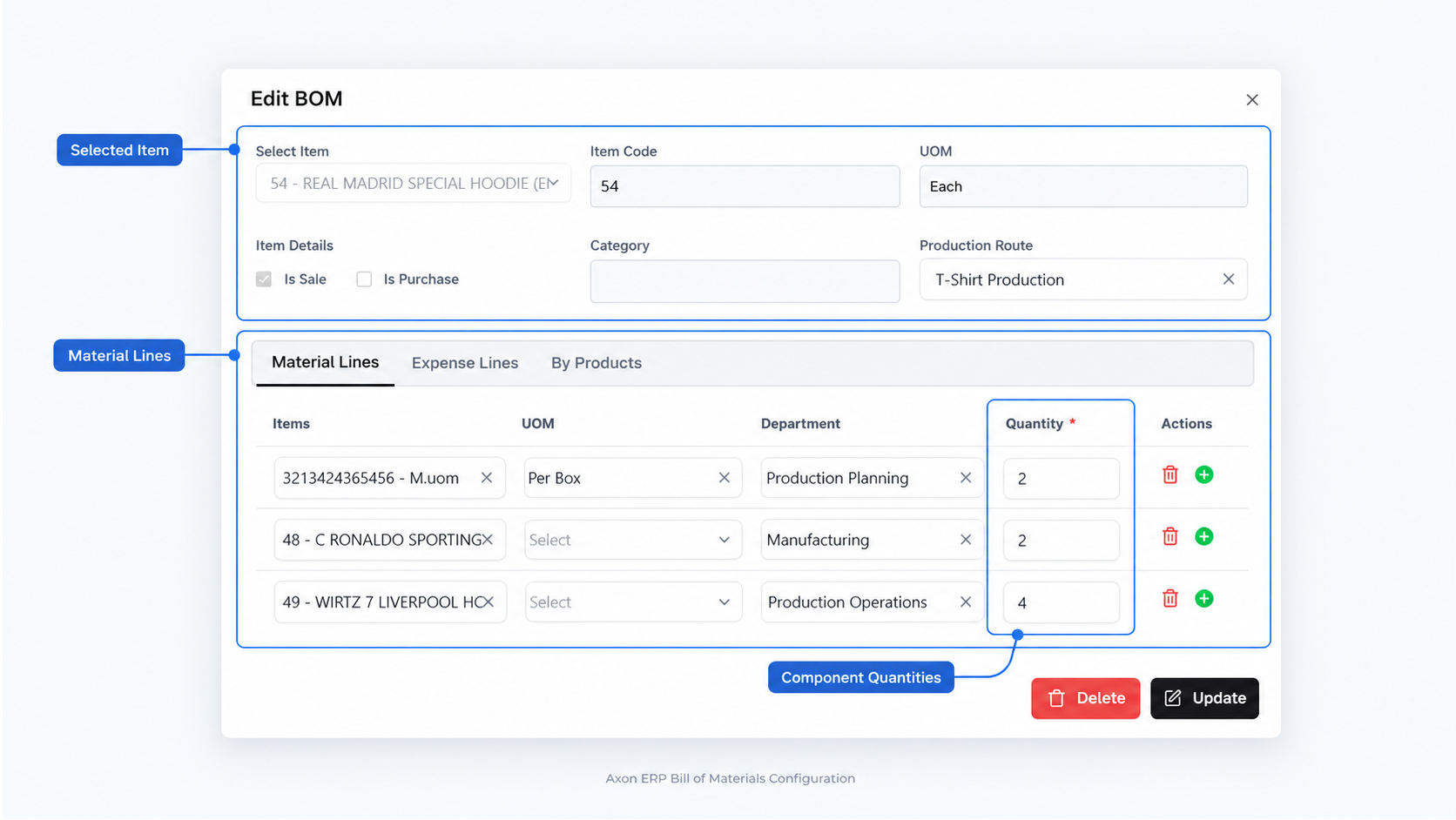
Axon ERP provides a BOM configuration form with fields for selecting an item and recording related details. The form includes Select Item, Item Code, UOM, Item Details, Is Sale, Is Purchase, Category, and Production Route. It also contains separate Material Lines, Expense Lines, and By Products tabs.
The practical starting point is to select the relevant item and review its identifying information before entering component requirements.
1. Select the item and review its details
Begin by selecting the item for which the BOM is being configured. Review the Item Code, UOM, Item Details, Category, and the Is Sale and Is Purchase fields shown in the form.
Check these fields against the item's actual setup. Do not change values simply because a particular combination appears familiar from another product. Confirm that the selected item and its details match the product being configured.
The form also includes a Production Route field. Its configuration should follow the actual manufacturing process and the supported Axon workflow. Do not assume that selecting a route automatically schedules production or performs other operations unless that behaviour has been verified.
2. Define the component materials in Material Lines
The Material Lines tab contains the component entries and their quantities. Its table includes Items, UOM, Department, and Quantity.
For each material line, select the appropriate component and verify its unit and quantity against the product specification. Check the Department field according to the business's requirements and the intended use of the form.
Pay particular attention when products use similar materials or when quantities involve decimal values. A correctly selected finished item does not guarantee that every component entry is correct.
The component list should be reviewed as a complete product structure. Confirm that the materials and quantities recorded in the form represent what the manufacturer intends to associate with the finished product.
3. Review Expense Lines separately
Axon ERP's BOM form includes a separate Expense Lines tab. For example, a manufacturer may need to record an expense such as electricity in the relevant configuration.
Material entries and expense entries should not be treated as interchangeable. Enter information according to the purpose of the respective section, and verify how expense entries are used in the supported Axon workflow before relying on them for cost calculations or other operations.
4. Review the remaining configuration
The form also includes a By Products tab. Businesses should confirm the supported use of this section before relying on it for a particular manufacturing requirement.
Likewise, review the Production Route field according to the process being configured. The presence of these options does not, by itself, confirm that production planning, automatic material movements, by-product processing, or other operations will take place.
Where a required behaviour is unclear, ask the ERP provider to demonstrate it using a relevant product and manufacturing scenario.
5. Validate the BOM against the product specification
Before treating the configuration as complete, review the selected item, its identifying details, and every material line's item, UOM, Department, and Quantity.
Compare these entries with the approved product specification. Confirm that the quantities use the intended basis and that no component has been selected merely because its name resembles the required material.
The final check is straightforward: does the configured BOM accurately represent the materials and quantities the business intends to associate with this product?
Common BOM Configuration Errors That Affect Reliability
A BOM can look complete while still containing incorrect information. Manufacturers should pay particular attention to the following issues.
Incorrect component selection: Similar item names can make it easy to select the wrong material. Check item codes and details rather than relying on names alone.
Unclear quantity basis: Quantities intended for a batch can be confused with quantities required for a single finished unit. Keep the intended basis clear and verify it against the product specification.
Inconsistent units: A quantity is meaningful only when its unit is understood. Confirm the component's UOM and check any required conversions.
Unreviewed product changes: Changes to product specifications may require changes to the associated material requirements. Establish a review process so that the BOM remains aligned with the current approved specification.
Assuming inventory updates happen automatically: A BOM record and an inventory transaction are not necessarily the same thing. Manufacturers should verify how their ERP handles material consumption and stock movements rather than assuming that entering component quantities automatically changes inventory.
These checks complement wider inventory management practices, which help businesses maintain consistent item records and control inventory-related processes. The precise effect of a BOM on stock, costing, or production depends on the functions supported by the ERP and how those functions are configured.
What to Evaluate When Choosing Bill of Materials Software
When comparing bill of materials software, manufacturers should evaluate how well the available configuration matches their products, material requirements, and production processes.
Start by checking whether the software can identify the relevant finished item and record its component items, units, and quantities in a clear structure. Review the available fields and determine whether they capture the information the business needs to maintain.
Next, examine the actual workflow rather than relying solely on a feature list. If expense entries, production routes, or by-product handling are important to the business, request a demonstration of those specific functions.
Also consider how BOM information relates to other manufacturing activities. For example, the business may need to understand how component requirements relate to material issue and inventory consumption. This is a related operational process, but its availability and connection to the BOM should be verified rather than assumed.
Other requirements, such as multi-level BOMs, revision control, production planning, material availability checks, costing, and automatic inventory transactions, should be evaluated separately. The presence of a BOM form alone does not establish that every one of these capabilities is available.
When assessing manufacturing ERP software, ask the provider to demonstrate the workflows that matter to your business. Use representative products, real material requirements, and practical production scenarios to establish what the system supports and which processes require additional configuration or separate modules.
Frequently Asked Questions
What is a bill of materials in ERP?
A bill of materials in ERP is a structured record of the component items and quantities associated with a particular product. It provides a consistent reference for the materials specified for that product.
How do you structure a BOM for a finished product?
Select the correct finished item, identify its required component materials, record the appropriate units and quantities, review the relevant configuration fields, and validate the result against the approved product specification.
What is the role of Material Lines in an ERP BOM?
Material Lines record the component items associated with the selected product. In Axon ERP, the Material Lines table includes Items, UOM, Department, and Quantity.
Are material quantities and expense entries the same in a BOM?
No. Material quantities describe component entries, while expense entries belong in the separate Expense Lines section when relevant. The supported use of each section should be confirmed for the ERP workflow.
Does a BOM automatically calculate production costs?
Not necessarily. Cost calculation depends on the ERP's available functionality and configuration. Verify the costing workflow separately before relying on a BOM to calculate production costs.
Does every ERP BOM support production planning and automatic stock updates?
No universal assumption should be made. Production planning, material availability, and inventory transactions depend on the particular ERP and its configured workflows. Confirm each required function during evaluation.
Final Thoughts
A useful bill of materials starts with the correct product and clearly defined component requirements. Accurate item selection, appropriate units, verified quantities, and a careful review process help manufacturers maintain a BOM that reflects their actual product specifications.
Axon ERP provides a BOM form with item details, Material Lines, Expense Lines, and By Products sections. Manufacturers evaluating the system should review these fields against their requirements and verify any additional production, costing, or inventory functionality they need before implementation.