

Post Detail
BackAxon ERP Official
14 weeks ago
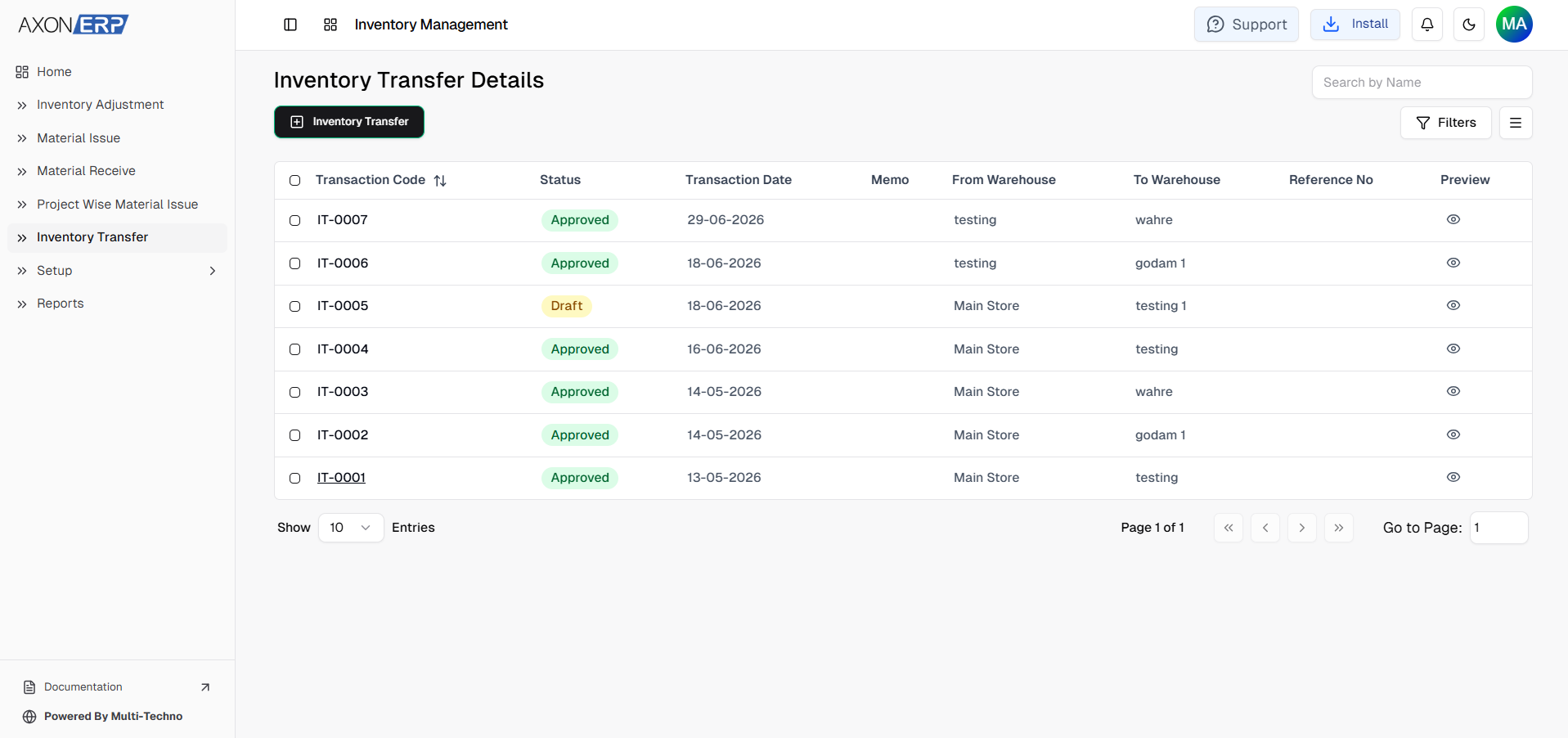
How Inventory Transfer in ERP Improves Warehouse Accuracy and Stock Control
Managing inventory across multiple warehouses isn't just about knowing how much stock you have it's about knowing exactly where that stock is.
Imagine one warehouse running out of a fast-moving product while another warehouse has the same item sitting unused. Without a proper system, businesses often rely on phone calls, spreadsheets, or manual stock adjustments to move inventory between locations. Over time, this creates inaccurate inventory records, duplicate purchasing decisions, and poor visibility across warehouses.
An ERP system solves this problem through a structured Inventory Transfer process. Every stock movement is recorded in real time, warehouse quantities are updated automatically after approval, and management can see exactly where inventory is located at any moment.
Whether you're operating a manufacturing company, wholesale distribution business, retail chain, construction project, or healthcare organization, efficient inventory transfers help ensure the right products are available at the right location when they're needed most.
What Is Inventory Transfer in ERP Software?
Inventory Transfer is the process of moving inventory items from one warehouse or storage location to another within the same organization.
Unlike a purchase or sale, ownership of the inventory does not change. The stock simply moves from one location to another while the company's total inventory remains the same.
For example, a business may:
- Transfer products from a central warehouse to a branch warehouse.
- Move raw materials closer to a production facility.
- Redistribute inventory between regional warehouses.
- Balance stock levels based on demand.
- Supply project-specific storage locations.
Instead of manually adjusting quantities, ERP software records the transfer through a controlled workflow that keeps inventory records accurate across all locations.
Why Inventory Transfer Matters
As businesses grow, inventory is often spread across multiple warehouses, branches, or project locations. Without a standardized transfer process, maintaining accurate stock records becomes increasingly difficult.
Common challenges include:
- Stock shortages in one warehouse while excess inventory sits elsewhere.
- Manual stock adjustments that create reporting errors.
- Duplicate purchasing because existing inventory cannot be located.
- Delays in customer fulfillment or production.
- Limited visibility across warehouse locations.
- Higher operational and inventory carrying costs.
A structured transfer process ensures every stock movement is properly recorded, approved, and reflected instantly in inventory reports.
Inventory Transfer plays a vital role in keeping your supply chain efficient by ensuring inventory is available at the right warehouse when it's needed.
How Inventory Transfer Works in Axon ERP
Before stock can be transferred between warehouses, it is typically recorded through the Material Receive process.
Axon ERP provides a simple but controlled workflow for moving stock between warehouses.
Instead of manually reducing stock in one location and increasing it in another, users create an Inventory Transfer document that records the entire movement in a single transaction.
The typical workflow includes:
- Selecting the From Warehouse.
- Selecting the To Warehouse.
- Setting the Transaction Date.
- Entering a Reference Number if required.
- Adding a Memo or notes.
- Selecting inventory items.
- Entering transfer quantities.
- Saving the document as Draft.
- Reviewing the transfer.
- Approving the transaction.
- Automatically updating stock balances.
- Making the transfer available in reports.
Because every transfer follows the same workflow, businesses maintain consistent inventory records across all warehouse locations.
Creating an Inventory Transfer
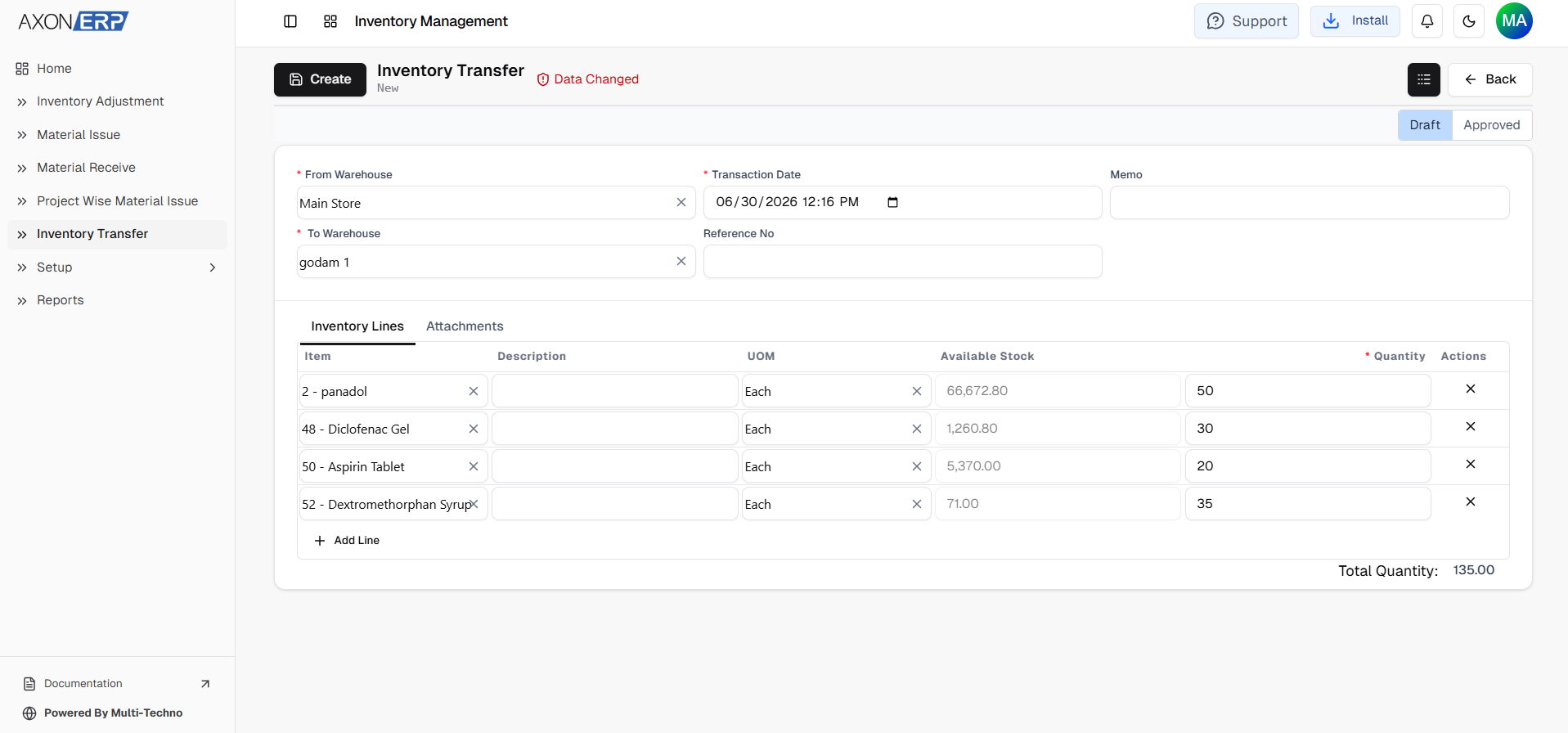
Users begin by creating a new Inventory Transfer document inside the Inventory Management module.
The system captures important transaction details such as:
- From Warehouse – Source warehouse.
- To Warehouse – Destination warehouse.
- Transaction Date – Date of transfer.
- Reference Number (optional).
- Memo (optional).
- Status – Draft or Approved.
After completing the header information, users move to the Inventory Lines section.
For each item being transferred, the following details are entered:
- Item
- Description
- Unit of Measure (UOM)
- Quantity
Multiple items can be added to a single transfer document, making it easy to move several products between warehouses in one transaction.
Draft and Approval Workflow
One of the biggest advantages of ERP software is that inventory is not updated immediately when a transfer is created.
Every new Inventory Transfer starts in Draft status.
While the document remains in Draft, users can:
- Add or remove items.
- Modify quantities.
- Change warehouse locations.
- Update references and notes.
- Review transfer details.
No inventory movement occurs while the document is in Draft status.
Once an authorized user approves the transfer, Axon ERP automatically:
- Deducts stock from the From Warehouse.
- Adds the same quantity to the To Warehouse.
- Updates inventory balances instantly.
- Records the transfer in inventory history.
- Reflects the movement in inventory reports.
Important
Because the inventory remains within the same organization, no accounting entries are generated during an Inventory Transfer. The transaction only changes the warehouse location of the stock.
How Inventory Transfer Connects with Other ERP Modules
Inventory Transfer is not an isolated process. It works together with several ERP modules to keep inventory operations synchronized.
- The Inventory Management module updates stock quantities after approval.
- The Warehouse Management process tracks inventory movement between locations.
- The Purchase Management module helps replenish warehouses when stock levels become low.
- The Manufacturing module can receive transferred raw materials for production.
- Inventory reports immediately reflect the latest warehouse balances.
This integration eliminates duplicate data entry and gives every department access to the same real-time inventory information.
While Material Issue records inventory leaving the warehouse for internal consumption, Inventory Transfer simply moves stock from one warehouse to another.
Benefits of ERP-Based Inventory Transfer
Better Inventory Accuracy
Stock levels update automatically after approval, reducing manual adjustments and inventory discrepancies.
Improved Warehouse Control
Warehouse teams gain complete visibility over inventory moving in and out of each location.
Faster Stock Reallocation
Businesses can move inventory quickly to locations where demand is higher.
Reduced Unnecessary Purchasing
Before buying new inventory, teams can check whether stock already exists in another warehouse.
Complete Traceability
Every transfer records the source warehouse, destination warehouse, items, quantities, date, and status.
Better Operational Decisions
Management can identify which warehouses are overstocked, understocked, or frequently requesting transfers.
Inventory Transfer Reports
Accurate reporting is one of the biggest advantages of ERP-based inventory management.
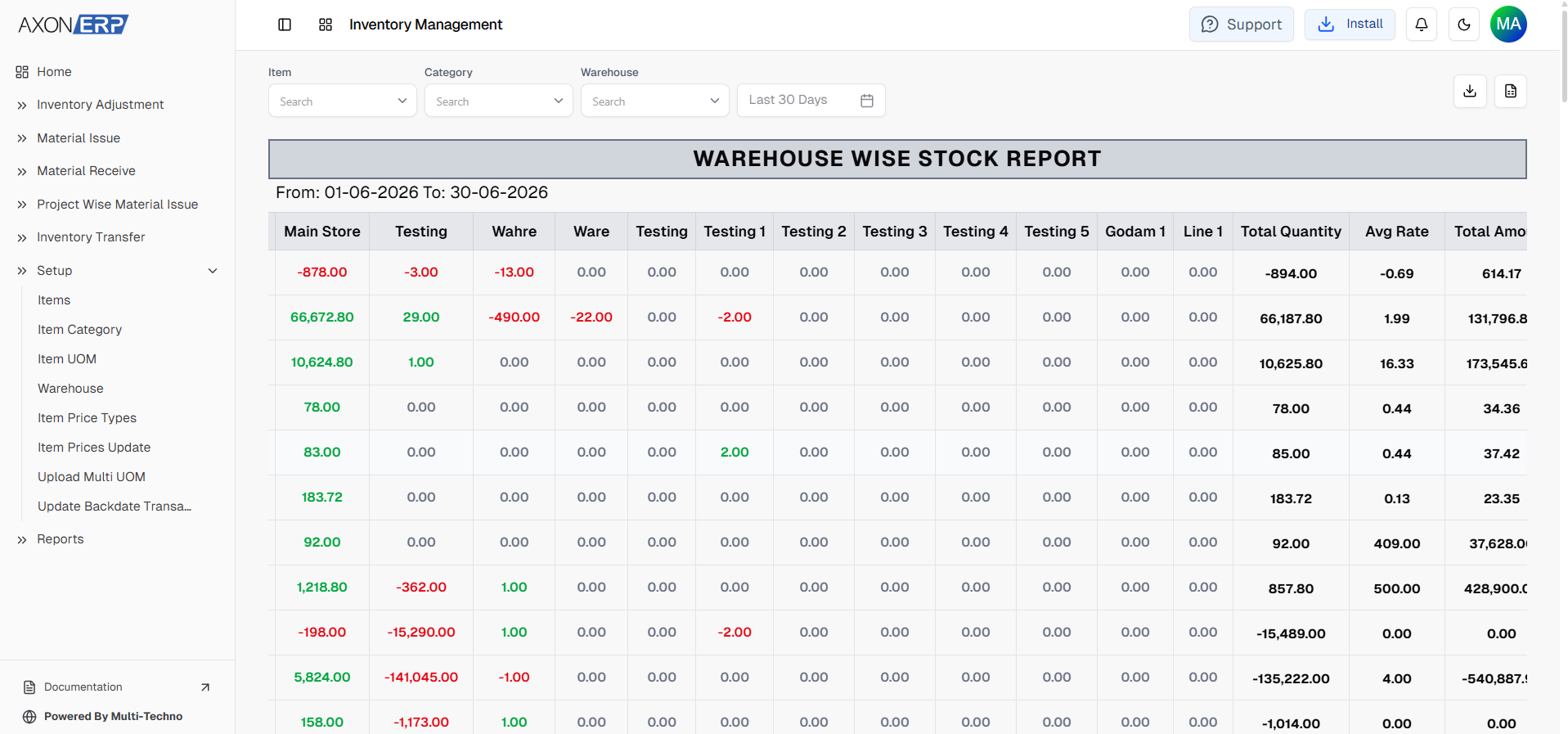
Approved transfers become part of the inventory history and can be analyzed through reports such as:
- Item Ledger – Shows inventory movements including transfers.
- Warehouse Wise Stock Report – Displays stock balances by warehouse.
- Inventory Quantity Summary – Provides overall stock visibility.
- Inventory Movement Reports – Helps track how inventory moves across locations.
These reports help businesses improve stock planning, warehouse utilization, and operational efficiency.
Best Practices for Inventory Transfers
To maintain accurate warehouse records, businesses should:
- Use ERP-based transfers instead of manual stock adjustments.
- Verify stock availability before creating a transfer.
- Use clear reference numbers for traceability.
- Review Draft documents before approval.
- Restrict approval rights to authorized users.
- Monitor transfer reports regularly.
- Keep warehouse locations properly organized.
Final Thoughts
As businesses expand into multiple warehouses and locations, keeping inventory organized becomes increasingly challenging. Inventory Transfer in Axon ERP provides a simple, structured way to move stock accurately without relying on manual adjustments or spreadsheets. With real-time inventory updates and complete visibility across warehouses, businesses can improve stock control, reduce operational delays, and make faster, more informed decisions.